
Reverse Video Search: How to Find Where Any Video Came From

You’ve seen a clip somewhere — a friend sent it, it showed up on your feed, or it’s sitting in a group chat with no context at all. No caption, no source, maybe not even a username you can trust. Reverse video search is how you work backward from the video itself to find where it actually came from, whether it’s been reposted, and whether it’s even real.
Unlike reverse image search, there’s no single button that does this for full video files the way Google Lens does for photos. What actually works is a handful of methods, some manual, some tool-based, and knowing which one fits your situation.
Check out our Technical SEO Services to fix indexing, crawling, and other technical issues that may be affecting your website’s rankings.
What reverse video search actually is
It’s the process of tracing a video back to its original source using its visual content instead of a caption, title, or keyword. Since most search engines still can’t scan an entire video file frame by frame the way you’d hope, the real technique is almost always: pull a still frame out of the video, then run that frame through a reverse image search.
That distinction matters. You’re not searching “by video” in the way you’d search by keyword — you’re extracting an image from the video and searching that. Once you understand that, most of the confusion around “why didn’t this work” clears up on its own.
Method 1: Google Lens (best for quick checks)
- Pause the video on a clear, distinctive frame — a moment with visible text, a recognizable location, or a face works better than a blurry action shot.
- Take a screenshot.
- Open Google Images or the Google app and tap the camera icon (Lens).
- Upload the screenshot.
Lens is strongest at identifying objects, landmarks, and products inside a frame. It’s less reliable at tracking down the exact original upload, especially if the clip has been cropped, re-encoded, or run through several rounds of reposting — each of those changes the pixels enough that matching gets harder.
Method 2: TinEye
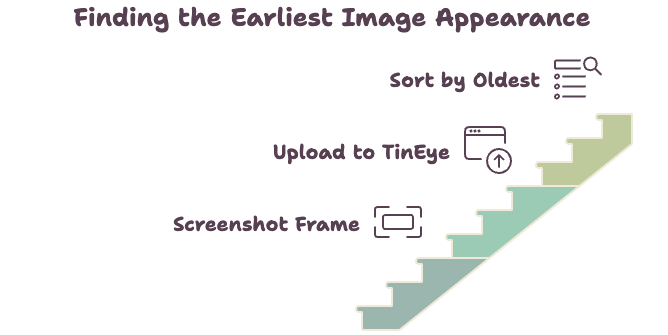
TinEye works differently from Google — instead of showing you similar-looking content, it’s built to find exact or near-exact matches of the same image, and shows you which one appeared first.
- Screenshot a frame from the video.
- Go to TinEye.com and upload the image.
- Sort results by “oldest” to try to spot the earliest known appearance.
TinEye tends to be more useful for tracking reposted images than for video specifically, but a clean frame from a video works the same way an image would.
Method 3: Yandex
Yandex’s visual search is worth trying even if you don’t use it for anything else, because its matching engine catches results that Google and TinEye both miss — particularly for content originally posted on non-English platforms or smaller regional sites.
- Go to Yandex Images.
- Upload your screenshot or paste a direct image URL.
- Scroll past the first row of visually similar results — the more useful matches (same frame, different site) are often further down the page.
If Google comes back empty, Yandex is usually the next thing worth trying before giving up.
Method 4: Bing Visual Search
Bing’s visual search sits in a similar place to Google Lens — decent for identifying what’s in a frame, less consistent at tracing an exact original source.
- Go to Bing’s visual search page.
- Upload the frame or paste an image URL.
- Review the “similar images” results, which sometimes surface the original post Google didn’t catch.
Method 5: The manual multi-frame approach
A single screenshot is a gamble, because the exact moment you happen to capture might not be the one that’s indexed anywhere. A better approach:
- Pull three to five screenshots from different points in the video — an opening frame, a mid-point frame, and the thumbnail frame if you can identify it (the frame a platform originally used as the preview tends to be the one most widely indexed, since it’s the one that got shared and screenshotted the most).
- Run each one through Google, then Yandex, then TinEye.
- If one frame returns nothing, don’t assume the video isn’t findable — try the next frame before giving up.
This takes longer than a single upload, but it’s the difference between a real answer and a false “no results found.”
Why this doesn’t always work
A few honest limitations, since most guides skip this part:
- Most reverse search tools match a single still frame, not the video as a whole. If the specific moment you screenshotted has been re-encoded, cropped, watermarked, or color-adjusted, the pixel match can fail even though it’s the exact same footage.
- Heavily edited or AI-generated clips sometimes have no earlier “original” to find at all — the tool can’t return a source that doesn’t exist.
- None of the free tools above offer batch searching or an API. Checking many clips at once, which platforms handling large volumes of content need to do, requires purpose-built moderation software rather than manual reverse search.
What people actually use this for
- Finding the original source or creator, so you can credit them properly before sharing or reposting.
- Checking whether footage is genuine, particularly around breaking news, where old clips get recirculated with a new, misleading caption attached.
- Spotting duplicate or stolen content, if you create videos yourself and want to see where your own footage has been reposted without permission.
- Content research, to see what related videos already exist around a topic before producing something similar.
- Verifying a product or location shown in a clip, using Lens-style object recognition rather than source tracing.
FAQs
Can Google search an entire video file, not just a frame?
Not in the way most people expect. Google’s visual search tools work from a still image, so the practical method is pulling a frame from the video and searching that image, not uploading the video file itself.
Which tool is best for finding where a video was originally posted?
Start with Google Lens for speed, then try Yandex if Google comes back empty — Yandex’s visual matching frequently surfaces results Google misses, especially for content that started on a non-English or regional platform. TinEye is worth adding if you specifically want to sort results by which appeared earliest.
Why does reverse video search fail on some clips?
The most common reason is that the frame you’re searching has been altered in some way since the original upload — cropped, re-compressed, watermarked, or color-graded. Even a same-scene match can fail to register if the pixels have changed enough. Trying a different frame from the same video, or a different tool, often solves it.
Is there a way to reverse search a video on mobile?
Yes. Screenshot the paused video on your phone, then open the Google app and use Lens (the camera icon) to upload it directly. The process is the same as on desktop, just with fewer steps since the screenshot and the search tool live in the same app.
Can reverse video search detect deepfakes or AI-generated video?
It can help, but indirectly. If a reverse search turns up no earlier original at all, or shows the “source” is inconsistent with the caption attached to the clip, that’s a signal worth investigating further. It isn’t a dedicated deepfake detector, though — for that, you’d want a tool built specifically for that purpose rather than a general reverse image search.